
Moonlight Quest Low FPS Fixes
Fix low FPS and stutter in Winx Club Moonlight Quest on PC: settings order, driver checks, laptop power plans, shader cache and when to refund.
Quick answer: Start with the in-game preset at low, set 1080p, disable motion blur and lower shadows. Then update your GPU driver, set the laptop to performance mode and close background apps. If the game still stutters, verify files and clear the shader cache.
Performance guides are usually a list of twenty tweaks with no order. This one is ordered by impact and risk. Do the first five before touching registry settings or third-party tools. Most low-FPS cases are settings, thermals or drivers, not exotic bugs.
For the official specs, read PC requirements→. For crashes, see crash fix→.
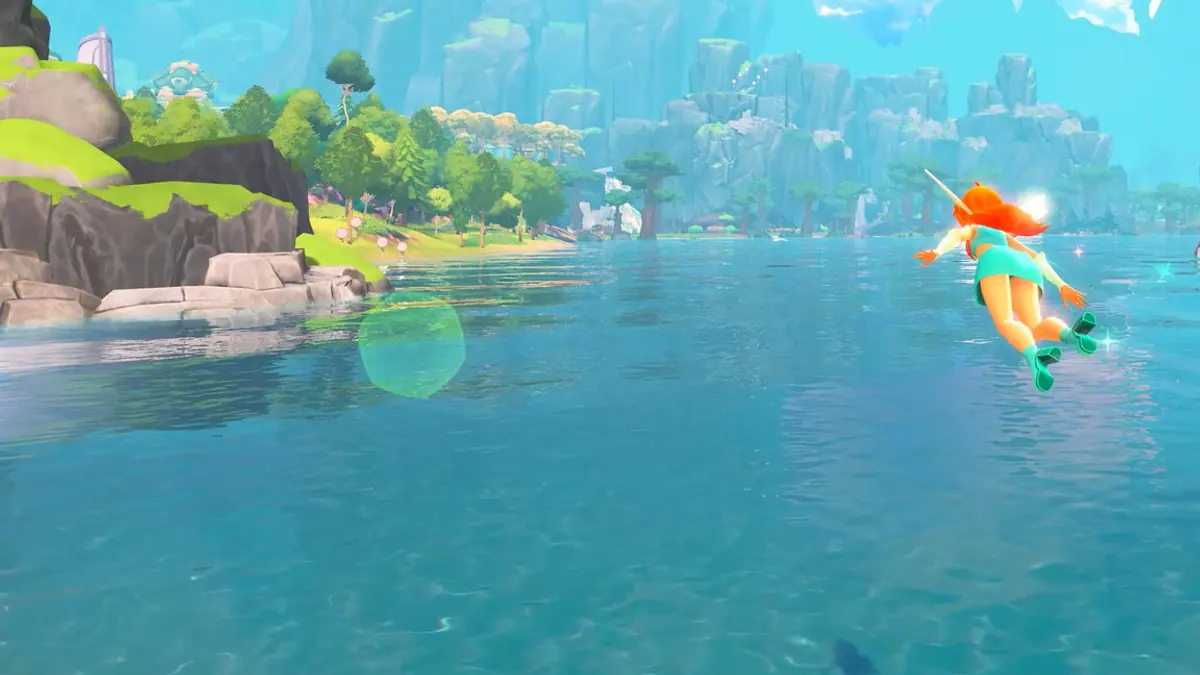
Step 1: Lower the right settings
Not all settings cost the same. In most open-world games:

| Setting | Cost | Recommendation |
|---|---|---|
| Shadows | High | Low or medium |
| Draw distance | High | Medium |
| Anti-aliasing | Medium | TAA or FXAA |
| Textures | VRAM-bound | Medium if 6 GB or less |
| Motion blur | Low | Off for clarity |
| Post-processing | Medium | Low |
| Resolution | Very high | 1080p |
Change one at a time and check the frame rate. If lowering shadows gives you 15 FPS, stop there.
Step 2: Set the right resolution
1080p is the target for a GTX 1060-class card. If you have a 1440p or 4K monitor, use:
- Resolution scale at 75–85%, or
- Windowed 1080p with integer scaling.
A lower internal resolution with a sharp UI looks better than a stuttering native image.
Step 3: Update the GPU driver
Use the manufacturer's tool:
- NVIDIA: GeForce Experience or the NVIDIA app.
- AMD: Adrenalin.
- Intel: Arc Control or the driver assistant.
Choose a clean install if you have switched GPUs recently. Do not install a "game-ready" driver from a third-party site.
Step 4: Fix laptop thermals and power
A laptop that meets the spec on paper can throttle in ten minutes. Check:
- Power plan: High performance or Balanced plugged in; never Battery Saver.
- GPU mode: Discrete GPU only, not Optimus/hybrid if the game misdetects.
- Ventilation: Hard flat surface, no bed or lap.
- Fan profile: Performance mode in the vendor app.
- Undervolt: If you know how, a modest undervolt can gain 10–15% sustained performance.
Monitor temperatures. If the GPU hits 85–90°C and clocks drop, cooling is the problem, not the settings.
Step 5: Close background load
- Browsers with many tabs.
- Launchers other than Steam.
- Recording software.
- RGB and monitoring tools.
- Windows updates in the background.
Check Task Manager for CPU, GPU and disk usage. If disk is at 100%, the game is streaming assets and an SSD upgrade will help more than any setting.
Step 6: Verify files and clear shader cache
On Steam:
- Right-click the game → Properties → Installed Files.
- Click "Verify integrity of game files".
- Delete the game's shader cache folder if stutter persists.
- Launch once and let shaders compile before playing.
First-launch stutter is normal in DirectX 11 games. Give it five minutes in a dense area.
Step 7: Check the game's own options
Look for:
- Frame rate cap. Set it to your monitor's refresh rate or 60.
- V-Sync. On if you see tearing; off if you see input lag.
- Dynamic resolution. On if available.
- Upscaling. FSR or DLSS can double performance at a slight softness cost.
- HDR. Can cost a few frames; disable if you are struggling.
What about the CPU?
If your GPU usage is below 80% and your CPU is at 100%, you are CPU-limited. Fixes:
- Close background apps.
- Raise resolution or settings to shift load to the GPU (counterintuitive but effective).
- Check for a single-core bottleneck; older i5s may struggle in dense city areas.
- Disable overlays.
Stutter versus low frame rate
These are different problems:
- Low FPS: consistently below 30. Fix with settings and hardware.
- Stutter: brief freezes. Fix with shader cache, SSD and background apps.
- Rubber-banding: network or streaming issue. Check the drive and connection.
Diagnose before tweaking. A stutter fix will not raise a 25 FPS average.
Fly the same route after each change. Random testing makes it impossible to tell whether a tweak helped.
When to refund
Steam's refund policy: under two hours of play and within fourteen days. If you cannot reach a stable 30 FPS after an hour of tweaking, refund and buy on console.
Do not spend six hours optimizing a game you could return.
Will patches help?
Likely. Launch-window patches often improve performance and fix shader compilation. Check the patch notes in the first two weeks before assuming your hardware is at fault.
FAQ
Why is Moonlight Quest stuttering? Usually shader compilation, a slow hard drive or too little RAM. Try an SSD and a first-launch warm-up.
Will a GTX 1060 hit 60 FPS? At 1080p low to medium, possibly. It is the minimum spec, so 30–60 is realistic.
Does DLSS or FSR exist? Not confirmed. Check the graphics menu at launch.
Is 8 GB RAM enough? It meets minimum, but stutter is more likely. Close background apps.
Sources
- Winx Club - Moonlight Quest on Steam ↗ — official requirements.
- NVIDIA drivers ↗ — official GPU drivers.
- AMD drivers ↗ — official GPU drivers.
- Balio Studio ↗ — developer site.
Official source: requirements checked November 17, 2026. Performance fixes are general PC advice, not official support steps.