
Moonlight Quest Controls for PC and Console
Moonlight Quest controls: confirmed controller support, the actions you need to bind, camera and flight sensitivity tips, and what to check before launch.
Quick answer: Balio Studio has not published the full Moonlight Quest control map yet. Steam confirms full controller support, DualShock and DualSense compatibility, and "Gamepad Recommended". On PC, use a controller, enable subtitles, and set camera sensitivity before the first flight. Console players can rely on the default pad layout but should still check the in-game control screen.
A control guide written before release has to be honest about what it does not know. We cannot tell you that "R2 is ascend" because no official layout exists. We can tell you which actions the game must have, how to test each one in the first ten minutes, and which settings make flight feel right. That is more useful than a fake button table.
For the movement system itself, read the flight guide→. For a first-session plan, use the beginner guide→.
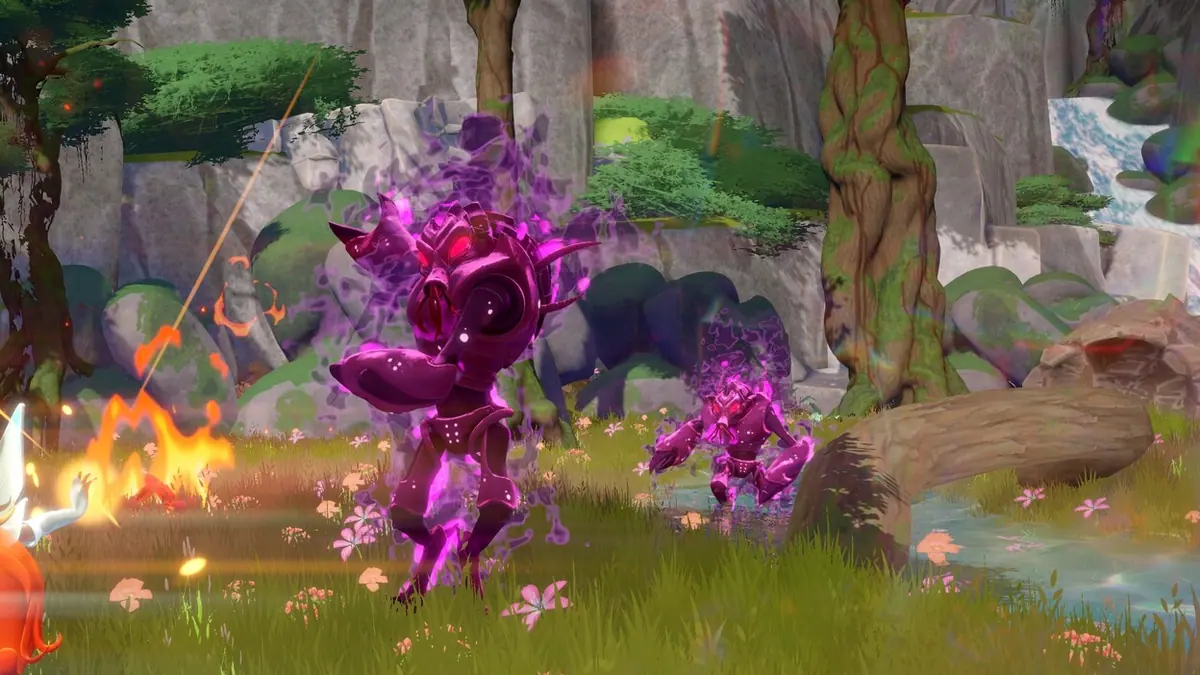
What is confirmed about controls
The Steam listing gives us a clear picture of the input philosophy:
- Full controller support. The game is designed to be playable start to finish with a pad.
- DualShock and DualSense support. PlayStation controllers work on PC, including the modern PS5 pad.
- Gamepad Recommended. Valve's label means the developer considers a controller the intended experience.
- Adjustable difficulty. Difficulty is a menu setting, not tied to a control scheme.
- Playable without timed input. The store tag suggests accessibility-friendly design, though the exact implementation is unknown.
What is not confirmed: keyboard and mouse support, remapping, button prompts per controller brand, gyro aiming, or a control presets menu. Most PC games in this genre support at least remapping, but do not assume it until you see the menu.
Every console and PC game ships with a control diagram in the options or pause menu. Screenshot it on your phone before you start playing. It is faster than guessing mid-flight.
The actions the game must expose
Even without an official map, we know which verbs Moonlight Quest needs. Use this checklist during the first ten minutes and note which button does what:
| Action | Why it matters | What to test |
|---|---|---|
| Move | Ground exploration | Walk in a circle, check acceleration |
| Camera | Flight and combat | Full turn at low altitude |
| Jump / take off | Entering flight | Hold vs tap behavior |
| Ascend | Gaining altitude | Does it drain a meter? |
| Descend | Landing approach | Can you hover? |
| Transform | Fairy form | Toggle or hold? Cancelable? |
| Basic attack | Combat | Range, lock-on, auto-aim |
| Dodge | Survival | Direction relative to camera |
| Interact | Chests, NPCs, pickups | Hold or tap prompt |
| Map / quest log | Navigation | Pause or overlay? |
If a verb is missing from the control screen, it may be contextual. Many open-world games map interact and talk to the same button and change the prompt based on what is nearby.
Controller versus keyboard and mouse
The safe recommendation is a controller. Steam explicitly recommends one, and flight games benefit from analog sticks: you can hold a gentle turn instead of tapping A or D. A keyboard can still work, especially if the game supports mouse look, but two digital axes are a poor fit for a flight model built around smooth arcs.
On PC, a DualSense gives you the same layout as the PS5 version, including the same button symbols if the game supports Sony's prompt set. An Xbox pad works too, but the prompts may show Xbox letters. This is cosmetic; the actions are the same.
If you only have a keyboard, test these before committing:
- Can you rebind ascend and descend to keys your left hand can hold comfortably?
- Does the camera follow the mouse, or is it arrow-key only?
- Can you attack while moving, or does the game lock your feet?
- Is there a toggle for hold-to-fly? Hold-to-fly is tiring on a keyboard.
Camera and sensitivity settings
These are the settings that change how the game feels, in order of importance:
- Horizontal camera speed. Raise it until a 180-degree turn takes about a second. Too slow and you will overshoot every landing.
- Vertical camera speed. Keep it slightly lower than horizontal. Vertical motion causes more nausea in flight games.
- Invert Y. Set it before you play. Changing later is painful.
- Camera shake. Turn it down if the game offers it. Shake is the first thing to disable for motion sensitivity.
- Motion blur. Disable it if you can. It makes fast flight look smeared and costs performance.
- Field of view. If a slider exists, raise it for flight and lower it for combat. Most games do not offer separate values, so pick a compromise around 90 degrees if the scale allows.
Accessibility options matter here. The store's "Playable without Timed Input" tag suggests the developer thought about players who need more time. Look for hold-to-toggle alternatives, subtitle size, and colorblind settings in the same menu.
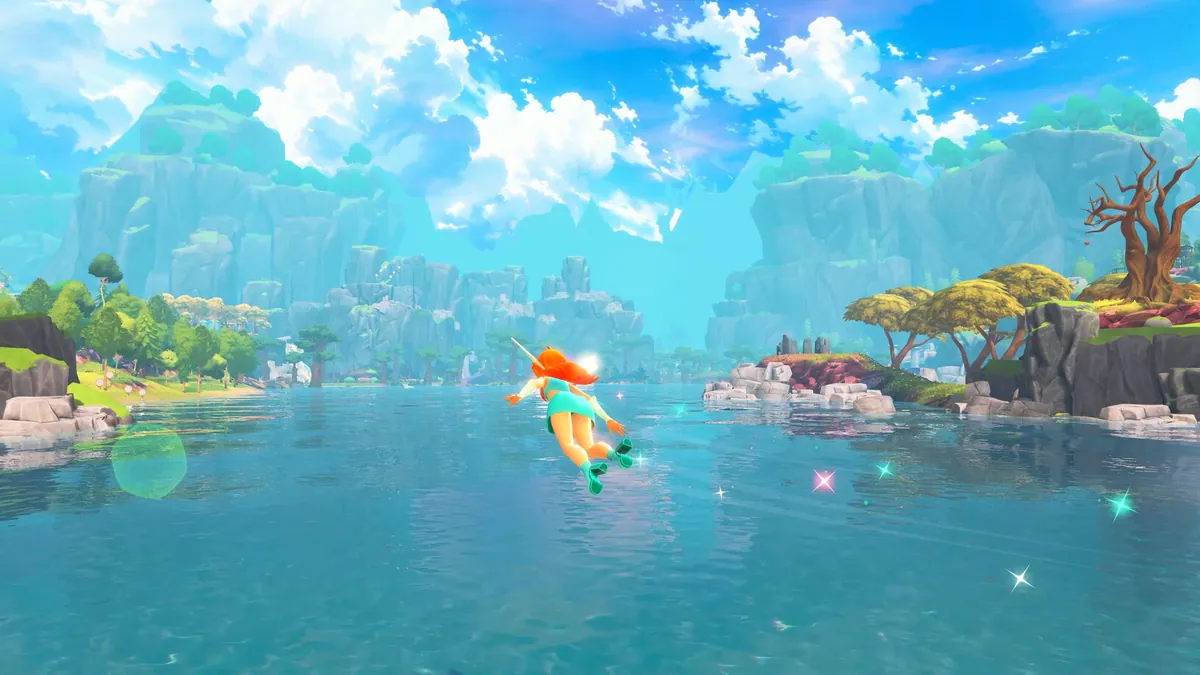
What to do if the controls feel wrong
If flight feels unresponsive, check these in order:
- Controller deadzone. A worn stick can drift. Test it in the console or Steam controller settings.
- Wireless interference. Bluetooth headsets and USB 3.0 ports can add latency. Try a cable.
- Frame rate. Low FPS makes camera movement feel heavy. The low FPS guide→ covers the usual fixes.
- Game mode on your TV. Cinema mode adds processing delay that is very noticeable in flight.
- Battery. A low controller battery can cause dropouts that look like input lag.
If the game crashes when you open the control menu, that is a different problem. See the crash fix guide→.
Remapping and accessibility wish list
We do not know which of these Moonlight Quest includes, but they are worth checking on day one:
- Full remapping for controller and keyboard.
- Separate sensitivity for flight and on-foot camera.
- Toggle instead of hold for ascend, transform and sprint.
- Subtitle background opacity.
- Colorblind-safe enemy outlines.
- Difficulty changes at any time.
If a feature is missing, the official channels are the place to request it. A polite, specific request ("separate flight sensitivity slider") is more likely to be forwarded than a general complaint.
FAQ
What button transforms Bloom? Not officially confirmed. Check the in-game control screen; transformation is likely a face button or a shoulder button, but the exact mapping has not been published.
Can I play Moonlight Quest with keyboard and mouse? Steam confirms controller support but does not explicitly confirm keyboard and mouse. Test it during the refund window if you plan to play that way.
Does the PS5 version use haptics? Not confirmed. DualSense support is listed for PC, but adaptive trigger and haptic features have not been detailed.
Can I remap controls? Unknown. Most PC releases allow it; the store page does not list remapping as a feature.
Sources
- Winx Club - Moonlight Quest on Steam ↗ — controller support and accessibility tags.
- PlayStation Store listing ↗ — PS5 and PS4 versions.
- Balio Studio ↗ — developer site.
- Steam controller support ↗ — how Steam handles PlayStation and Xbox pads on PC.
Official source: Steam feature tags checked November 17, 2026. The full control map and remapping options are not officially confirmed.